Connect WhatsApp to Brixit
Bring your company’s WhatsApp conversations into Brixit. Your team can reply from the WhatsApp workspace or a contact’s timeline, prepare approved text templates and manage campaigns for selected contacts.
Start here
- Testing with Meta’s supplied number? Follow Test WhatsApp step by step.
- Connecting a client’s business number? Follow the steps below.
The screenshots show the actual Brixit interface with demo data. They do not show a live customer account or a completed Meta signup. Meta’s screens can vary by account. Select any screenshot to open it at full size.
What the client needs
- Access to Integrations → Apps in Brixit, with WhatsApp enabled for the workspace.
- A Meta login that can manage the client’s business portfolio and WhatsApp account.
- The business phone and access to any verification messages or calls Meta requests.
- A payment method configured in WhatsApp Manager. The client pays Meta directly for usage.
Brixit currently connects one business number per company. The client should use their own business account and number. Agents use that shared connection according to their CRM permissions.
1. Open WhatsApp in Brixit
Go to Integrations → Apps, find WhatsApp and open its connection dialog. Choose the option that matches the client’s number:
| The client’s number | Choose in Brixit |
|---|---|
| Already used in the WhatsApp Business phone app, and they want to keep using the app | Connect my existing WhatsApp Business app |
| A dedicated new number or an existing Business Platform/API number | Connect a new or API number |
| Used in personal WhatsApp | This is not the Business app connection. Ask support to review the number’s setup first. |
2. Choose the number type
Keep the existing WhatsApp Business app
- Select Connect my existing WhatsApp Business app.
- Leave Import existing chats into Brixit off to receive only new messages. Turn it on only if the client wants supported existing chats shared with the CRM team.
- Keep the WhatsApp Business app available on the client’s phone. Meta checks whether the number is eligible to use both the app and Brixit, a connection called Coexistence.
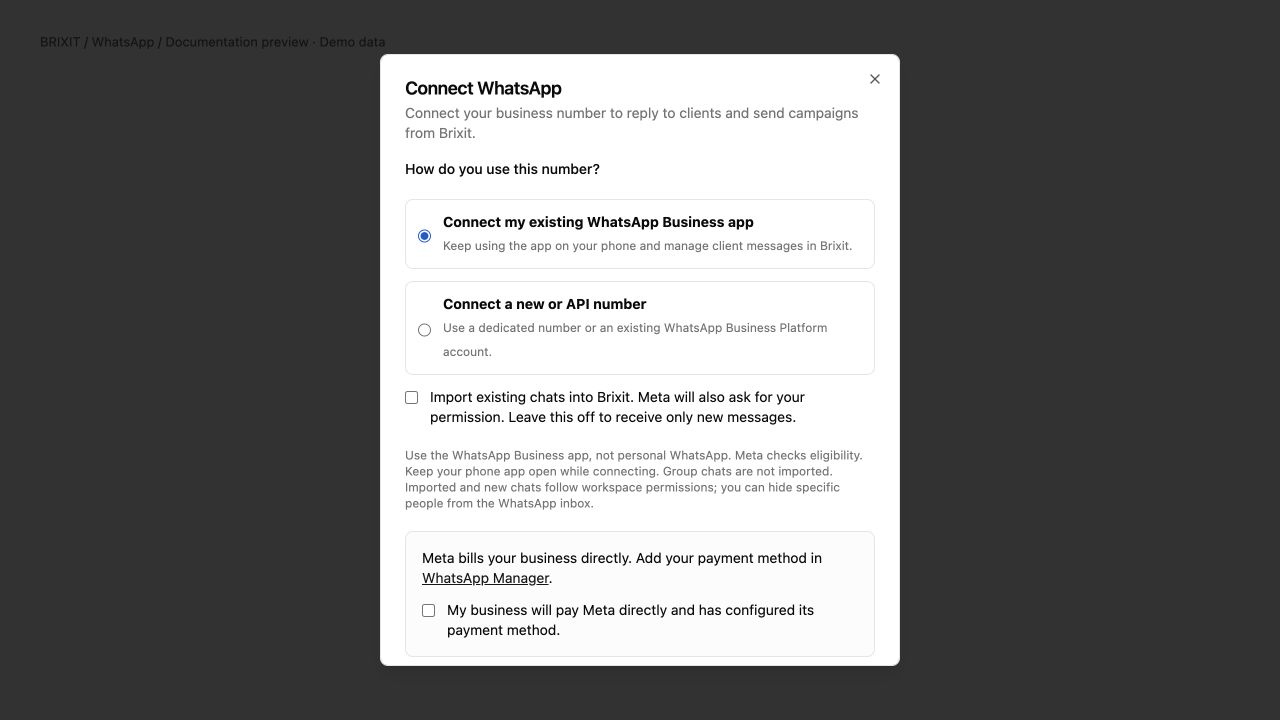
Existing Business app setup. Importing chats is optional; the screenshot leaves it off.
Group chats are not imported. Imported history does not reopen Brixit’s reply window. Imported and new conversations follow CRM permissions. Use Hidden people in the WhatsApp workspace to manage people who should be hidden from that workspace.
Connect a new or API number
- Select Connect a new or API number.
- Use a number the client controls and can verify when Meta requests it.
- If the number is already attached to another provider, ask support to review its migration requirements before proceeding.
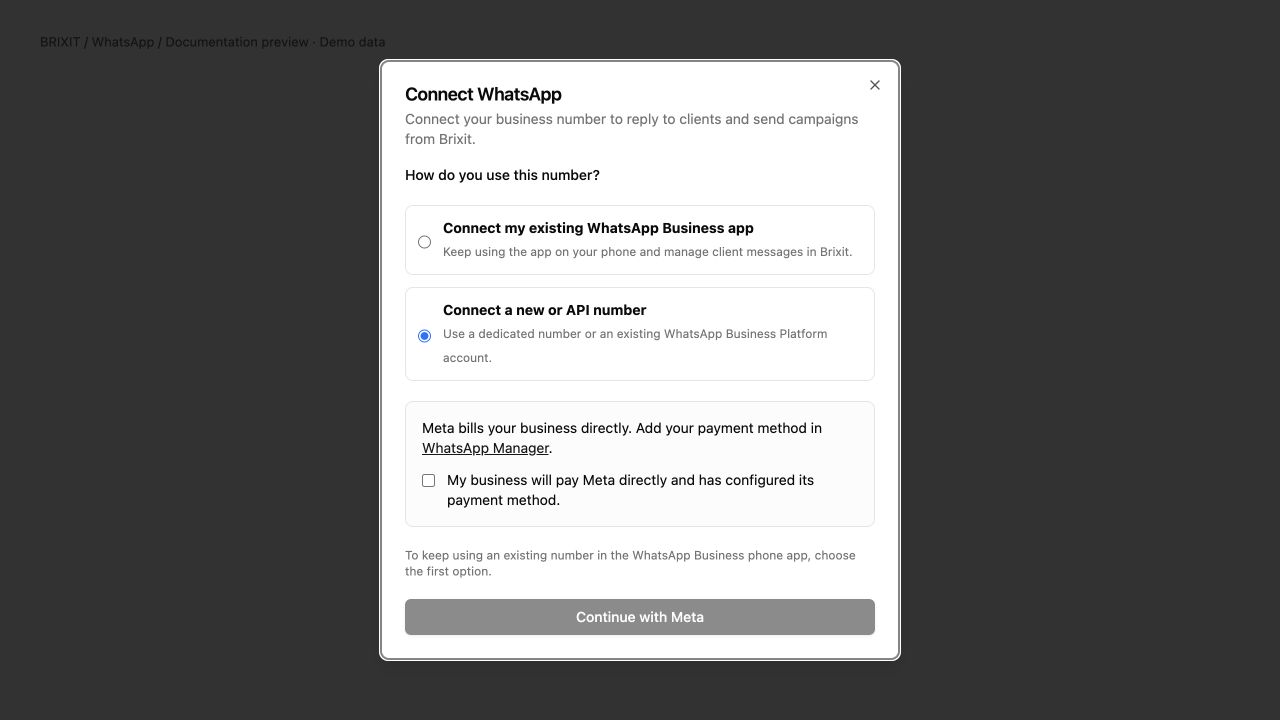
New/API number setup. Continue with Meta becomes available after setup is ready and billing is confirmed.
3. Finish the Meta connection
- Check the billing confirmation after the client has configured their payment method. For the Business app option, scroll down in the dialog if needed.
- Select Continue with Meta. Allow the sign-in pop-up.
- The client signs in, chooses their business portfolio and WhatsApp account, and reviews the access requested by Brixit.
- Follow Meta’s on-screen steps for the chosen number. Complete phone verification or the Business app confirmation/QR step if Meta presents it. If importing chats, the client must also approve sharing in Meta.
- Finish the flow and return to Brixit. Reopen the WhatsApp connection and check that it says Connected beside the correct number.
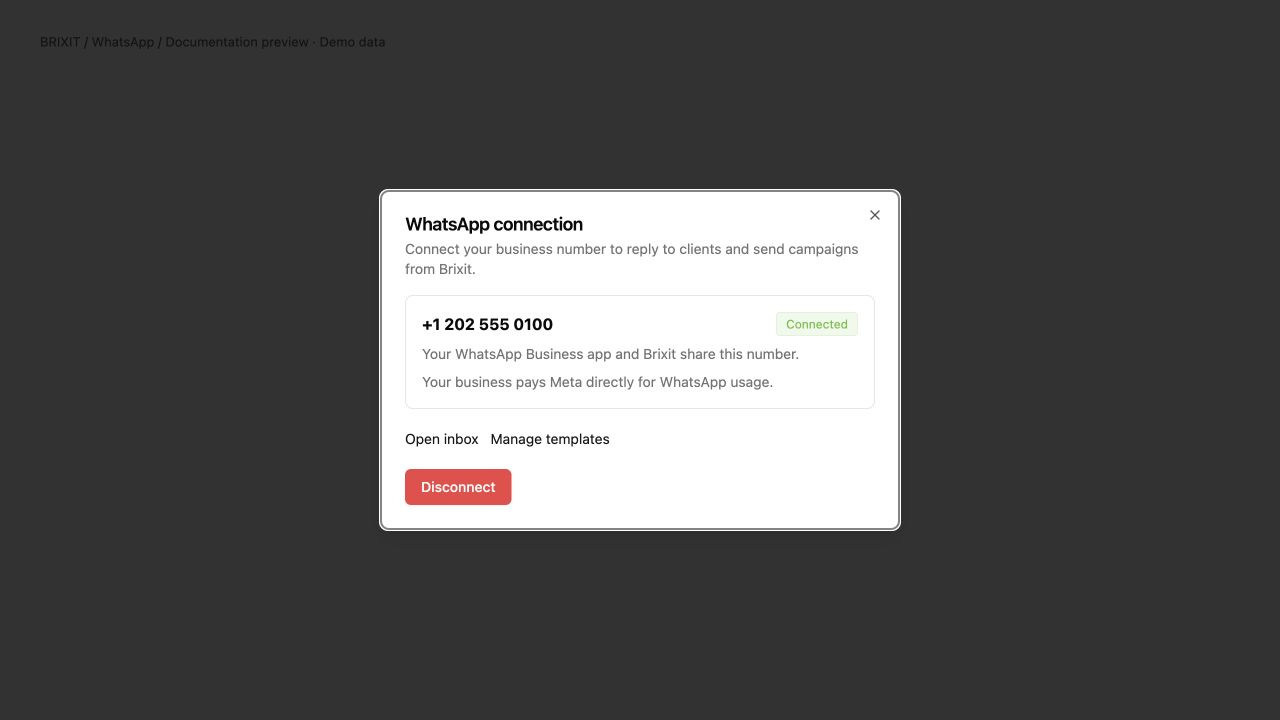
Connected state with a fictional number. The client should see their own number here.
A billing confirmation in Brixit records the client’s declaration; it does not verify the payment method with Meta. If setup fails or the number is ineligible, contact support with the message shown. Do not disconnect a working number to try a different one: replacing an existing company number needs a reviewed migration.
4. Send the first test conversation
- Give the test agent permission to view and send WhatsApp messages, plus access to the test contact.
- Add a consenting teammate as a CRM contact using their full international phone number.
- From that teammate’s phone, send Brixit connection test to the connected business number.
- Open WhatsApp → Client conversations and check that the incoming message appears.
- Reply Test received from Brixit. Check that the teammate receives it on their phone.
- Check message delivery status in Brixit. Read status depends on the receipt Meta provides.
For a Coexistence connection, also send a reply from the Business app and check that it appears once in Brixit. This verifies both ways your team will use the number.
Use the testing checklist before rolling out to the rest of the team.
Reply to a client
Open WhatsApp → Client conversations, or the WhatsApp conversation in the contact’s timeline. Incoming messages are linked to an existing contact when the international phone number has a single matching record. Use numbers with their country codes.
Brixit limits conversation access using both contact visibility and WhatsApp permissions. Unmatched numbers require a team member with the appropriate access; ambiguous contact matches need review before the conversation can be linked.
In this release, Brixit allows free-form text replies within 24 hours of the latest incoming customer message. Outside that window, choose an approved text template. Brixit checks sending eligibility again when the message is dispatched. Check the message status to follow its progress; acceptance for sending is not confirmation of delivery.
Prepare text templates
- Open Templates from the WhatsApp workspace.
- Enter a name, language, category and plain-text message.
- Select Submit to Meta.
- Use Refresh status later. Only use the template after its status is APPROVED.
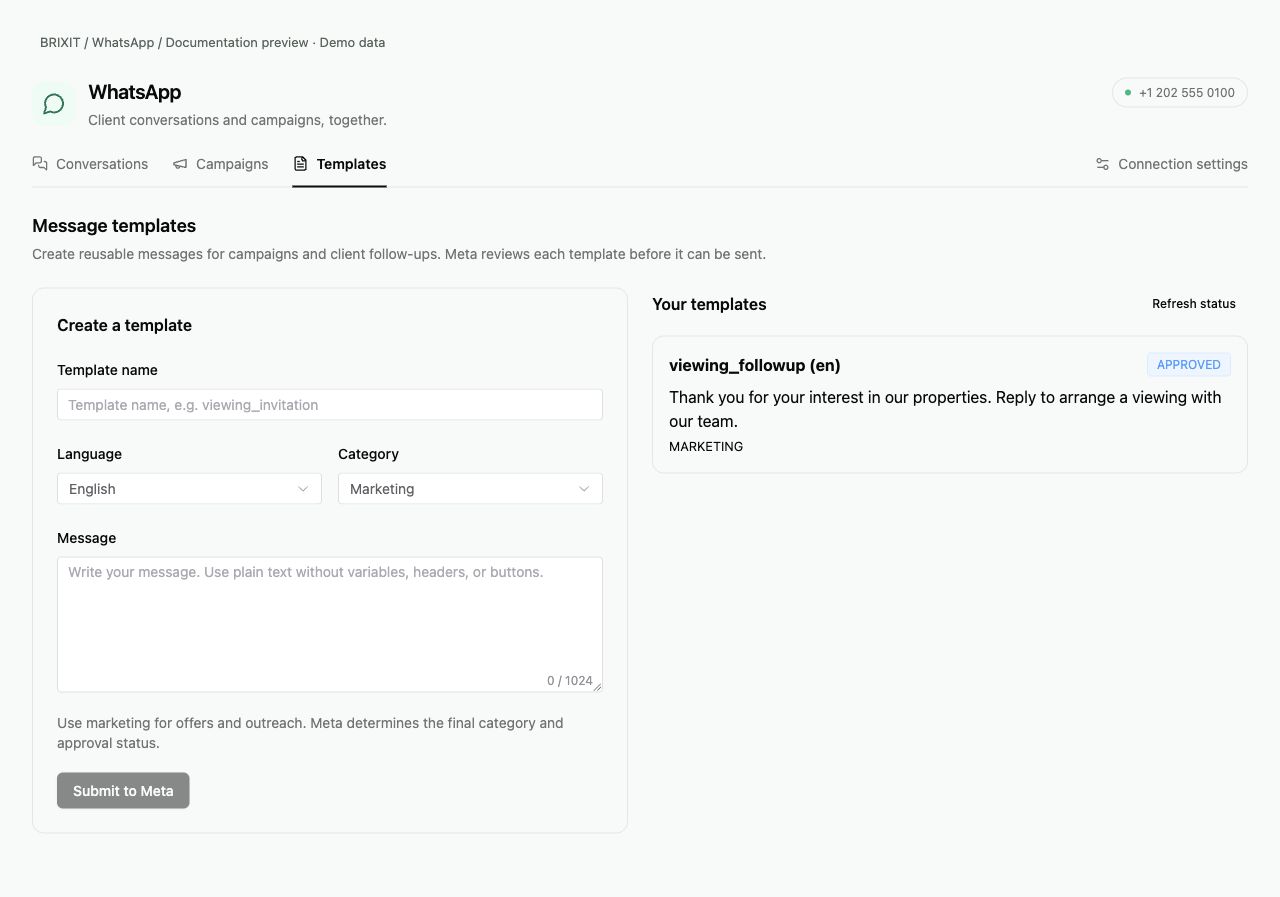
Actual Templates screen with a demo approval status. Your template must receive its own approval.
This release supports static body and footer text. Media attachments, template variables, headers and buttons are not supported. Unsupported incoming media appears as a message-type placeholder rather than a downloadable attachment.
Create a campaign
- Open WhatsApp → Campaigns and create a campaign.
- Choose an approved text template and select up to 1,000 CRM contacts.
- Review the message, audience and recorded consent, then save the draft.
- Review and explicitly approve immediate or scheduled delivery from the campaign list. Check the displayed UTC time when scheduling.
- Follow delivery results in the campaign report. Pause, resume or cancel pending delivery when needed; messages already being sent cannot be recalled.
Saving a draft does not send messages. A contact’s WhatsApp communication preference alone is not recorded campaign consent. Record consent for the intended purpose and respect opt-outs; Brixit rechecks consent, suppression, template approval and team access before sending.
Disconnect or get help
Open the WhatsApp connection in Integrations → Apps to disconnect. Pending messages are cancelled and chat history stays in Brixit. Disconnecting does not delete your Meta account.
If you cannot see a conversation or send a message, ask your administrator to check contact visibility, WhatsApp permissions, the connection and the message shown in Brixit. For campaign issues, also check template approval, recipient consent and opt-out status.
See How integrations work for general connection help, or explore the WhatsApp integration.