
Configure assignment and lead rotation in Brixit CRM
Both features are under Settings → Contacts & Inquiries, but they act at different times. Assignment Strategies route new incoming work. Lead Rotation moves idle contacts that already have an owner.
Create an assignment strategy
- Open Assignment Strategies and select Create Strategy.
- Enter Strategy Name and a useful Description.
- Choose Distribution Type and the eligible Team Members.
- Set the relevant Pipeline, Stage, Source, Contact priority and Inquiry intent defaults. Dependent fields change with the selected pipeline.
- Decide how Repeat inquiries should be assigned.
- Set Fallback User when appropriate to that repeat-inquiry behavior.
- Select Create, then choose the strategy in the form or integration that should use it.
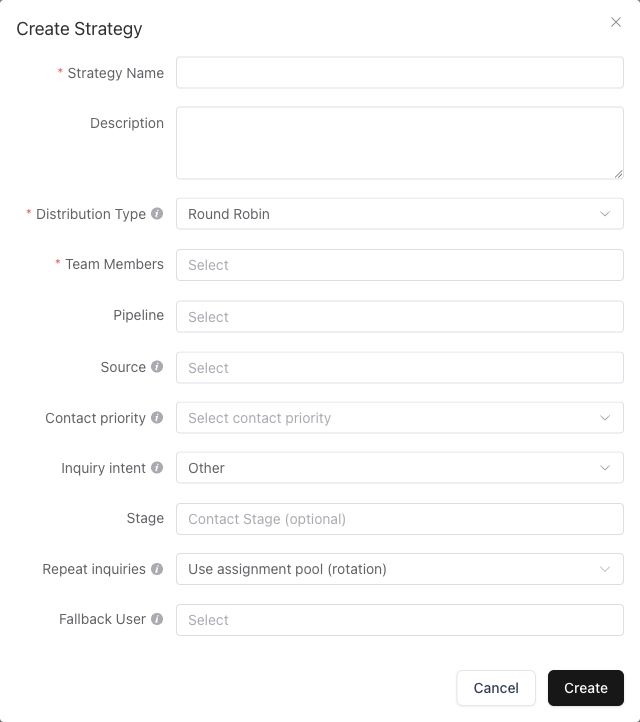
Creating the strategy is one step; the intake form or integration must also select it.
| Distribution type | Behavior |
|---|---|
| Round Robin | Rotates through the team pool in order |
| Balance Load | Chooses the eligible member with the fewest active leads |
| Weighted | Distributes work in proportion to member weights |
| Specific User | Assigns to the single selected member |
Handle a submission from an existing contact
Use assignment pool (rotation) uses the strategy’s team pool for repeat inquiries too; Fallback User is ignored in this mode.
Keep with contact owner assigns the inquiry to the contact’s current active assignee. If that owner is absent or inactive, the configured Fallback User receives it. Without a fallback, the strategy’s pool and distribution rules are used.
Create a lead rotation rule
- Open Lead Rotation → Rules and select Create Rule.
- Enter Rule name, choose whether it is Active, and set Priority.
- Choose Action: Reassign to team or Send to Contact Pool.
- For reassignment, choose distribution and team members. Set a fallback if needed when no eligible member remains after excluding the current owner.
- Set Inactivity (hours), then review Max rotations and Cooldown (hours).
- Set Working Days, Shift Start and Shift End.
- Complete Match conditions: sources, contact stages, current assignees, interaction status and the applicable client/owner/tenant/buyer exclusions.
- Review the complete rule and select Save.
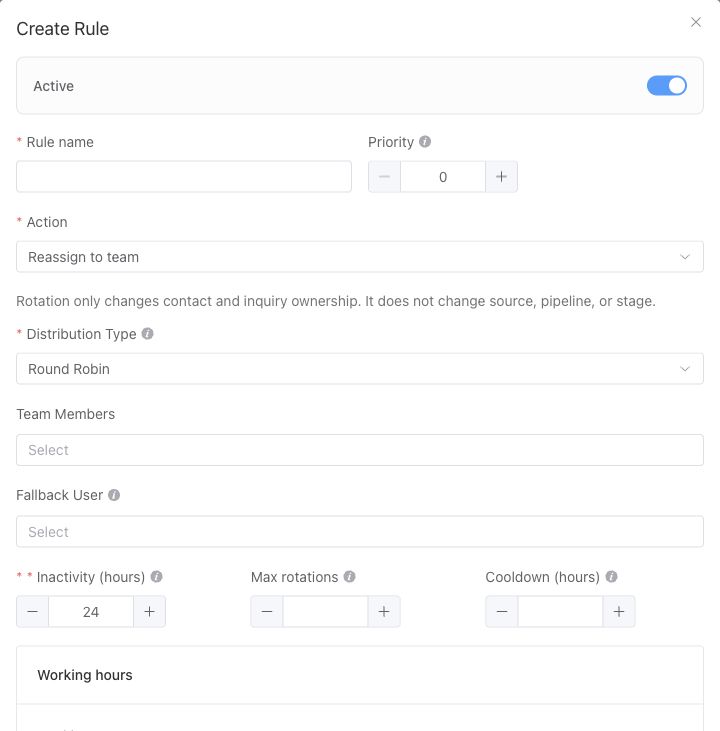
The upper part of the rule. Scroll down for working hours and match conditions before saving.
Lower priority numbers run first. A contact matches only one rule per scan, so put a specific rule ahead of a broad catch-all. Inactivity means no qualifying activity by the current assignee on the contact or its linked inquiries for the configured interval.
Rotation changes contact and inquiry ownership. It does not change source, pipeline or stage. Max rotations limits repeated movement under a rule; a configured cooldown allows the count to reset later. Without a cooldown, the limit remains until a manual reassignment or pool claim resets eligibility.
Review the result
Open Lead Rotation → Report, choose dates and a rule if needed, and inspect total rotations, unique contacts, movement by rule, movement by agent and agent-to-agent/pool flows. Investigate an unexpected movement using the matching rule and contact history.
For agents receiving work from the pool, see Contact Pool.