
How to import and work a contact database in Brixit CRM
Open Sales → Database for imported prospect lists. Database records have their own calling history and conversion state. Use them to qualify prospects before creating a contact or listing.
1. Prepare and import the list
- Select Create on the Database page.
- Enter a recognisable Name and select Assigned To.
- Select Download Template and arrange your data using that template’s columns.
- Choose a CSV, XLS or XLSX file within the 10 MB limit.
- Select Create and wait for the import result.
- Review the imported count and rejected rows. Download the rejected-row report when offered, correct those rows and check for existing records before importing again.
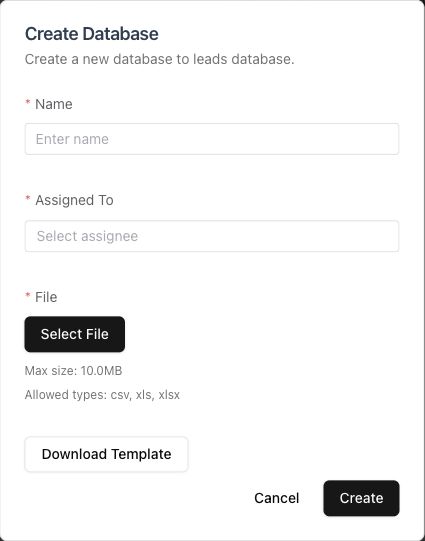
The import form is unsaved. Download the current template before preparing a list.
2. Review the database
Open the database by name. The summary shows total records, converted records (with contact and listing breakdowns), remaining records and conversion rate. Use the filters to narrow the working list. Conversion counts describe CRM records created from the list; they do not mean transactions have closed.
Use a row’s Record Call action to work on that prospect, or My Calls Today to open the calling queue. Opening My Calls Today from a database limits the queue to that database; opening it from the Database list works across your eligible assigned databases.
3. Record the call and next action
- Select a queue item and review its details and previous conversation.
- Make the call using your team’s calling method. The call form records the outcome.
- Choose the accurate Call outcome.
- Add notes that help the next conversation.
- Set a future callback when required. The date and time are shown in your device’s local time.
- Select Save & Next to save the call and refresh the queue.
| Outcome | What to complete |
|---|---|
| Reached — follow up, No answer, Callback requested | A future callback time |
| Interested, Qualified | A future callback plus the qualification fields shown |
| Not interested, Wrong number, Do not call | The accurate outcome and any useful context |
For Interested or Qualified, capture intent (sell, rent out, buy or rent), area/building, property type, unit/reference, budget and currency, and timeline as applicable. Use the form’s required-field messages to finish the record.
An empty queue can mean there are no eligible records due now. Check assignment, database status and callback dates; a future callback is not due yet. Refresh reloads the queue.
4. Convert the prospect
Use Save & Create Contact or Save & Create Listing in the calling panel when the record is ready. This saves the call and opens the corresponding creation form. Review the carried-over information, complete required fields and save that new form. Opening it alone does not complete conversion.
The record table also exposes Convert to Lead Contact and Convert to Listing where your role and the record state allow them. Open the resulting record and check its owner and details before continuing with follow-ups or inquiries.
Manage the list
Use Search databases to find a list and its row actions to reassign responsibility when available. Within a database, row actions include editing, follow-up and conversion as permitted. Bulk email, when available, uses the selected recipients or the chosen filtered audience; review the audience and message before sending.
Deleting a database removes its records. Check the selected database carefully before confirming deletion; do not use deletion to clear a filter or finish a calling session.
Troubleshooting
| Problem | Check |
|---|---|
| Import fails | File type, size, required template columns and rejected-row messages |
| No calls appear | Assigned user, active database, current filter and whether callbacks are due |
| Call will not save | Required outcome, future callback and qualification fields |
| Conversion action is missing | Record conversion state and permission to create the target record |
| You need to leave with unsaved changes | Save the call or deliberately discard the unsaved form when prompted |
Related: Sales · Follow-ups · Reporting.
Campaign guides
Use the records list’s Bulk Actions → Bulk Email to create an email campaign. Select at least two records to reveal the bulk menu, then review the sender, audience and preview before sending.