
How to publish a Brixit CRM listing to a property portal
Publish from the property’s Portals tab after the portal connection is ready. Saving a listing and marking it Active are separate from publishing it.
1. Check the connection and listing
- Ask an administrator to connect the destination under Integrations → Portals. Follow the portal setup guides for account-specific steps.
- Open Property → Listings, then the property you want to market.
- Check the title, sale/rent purpose, property type, location, price, size, bedrooms, description, photos, assigned agent and any required permit information.
- Review the Quality checklist and correct missing information.
- Open Portals. Only enabled portals are offered. If none appear, use Enable portals or ask an administrator to finish the connection.
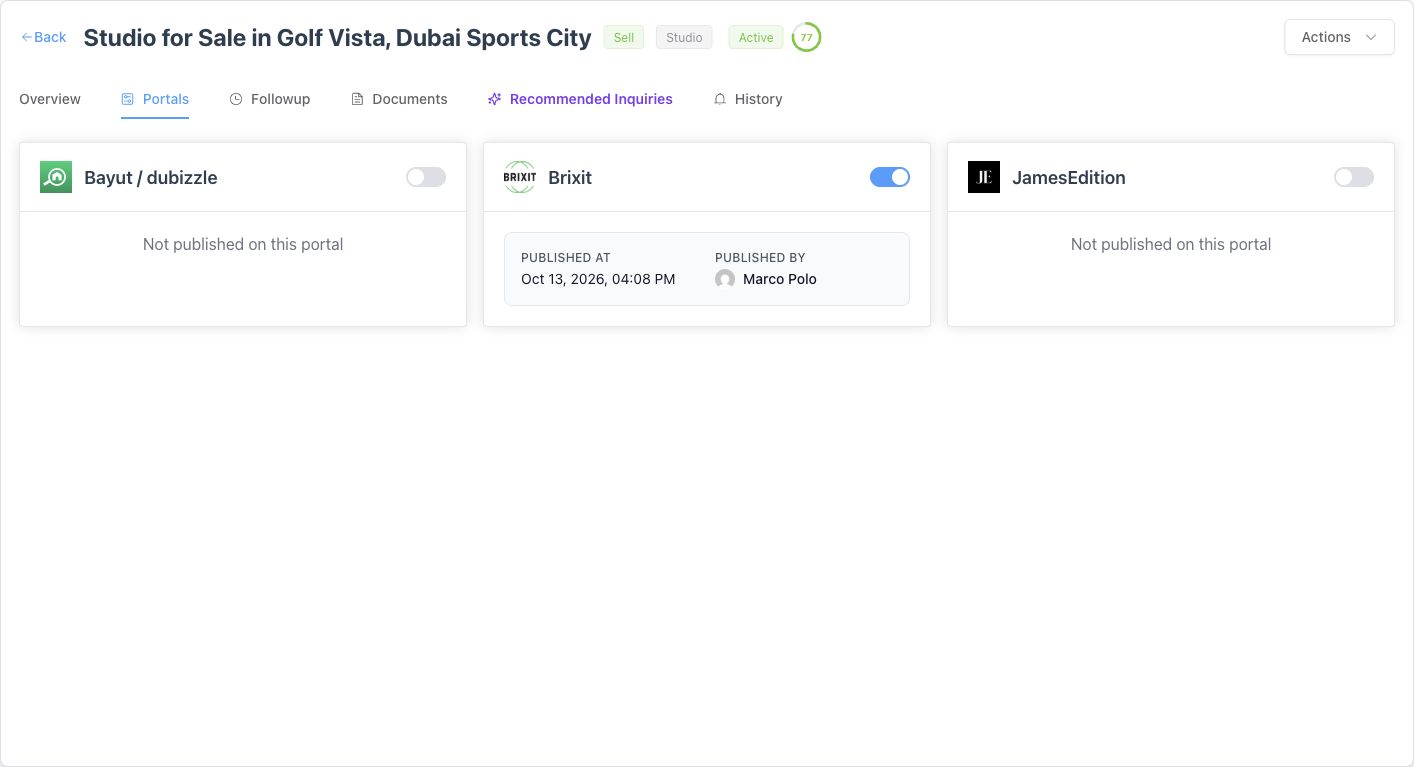
This example is already published on Brixit. The other two switches are off; available portals depend on the company connection.
2. Publish to the selected portal
- Locate the correct portal card and turn on its publication switch when ready.
- If a portal form opens, complete its required fields and review the destination-specific settings.
- Select Publish in that form. Correct any inline validation or portal error and retry after fixing the cause.
- Wait for success and check the card’s publication state, Published at and Published by.
- Check the property at the destination after the portal has processed it.
The switch is an action: a portal without additional form fields can publish immediately when switched on. For a portal that opens a form, publication completes only after submitting that form successfully.
Portal-specific requirements
| Destination | What to verify | Setup and behavior |
|---|---|---|
| Property Finder | Selected portal location, required listing and agent information, permit fields and returned validation | Property Finder |
| Bayut / dubizzle | Configured destination(s) and the values required by that connection | Bayut / dubizzle |
| JamesEdition | Account/feed setup and eligibility required by the destination | JamesEdition |
| Brixit | Publication settings and resulting public listing | Brixit publication |
The form varies by portal. Complete the fields shown for your destination rather than copying another portal’s values. A successful CRM publication state does not guarantee that an external portal has completed its feed processing or review.
3. Update a published listing
Edit and save the listing’s property details first. Return to Portals to review its publication state. Where the card reports Out of sync, use Sync now to send the saved changes and then check the result.
For portal-specific values, use the card’s edit pencil when available, adjust the fields and select Update. The edit control appears for a published portal with editable publication fields. Check both the card and destination after updating.
4. Unpublish
Turn off the portal’s switch and read the Unpublish confirmation before confirming. For a combined Bayut/dubizzle connection, check the configured destinations being removed. Verify the card is no longer published and allow for the destination’s processing time. Unpublishing from one portal does not delete the CRM listing or automatically retire other portal publications or Shares.
Troubleshooting
| What you see | Next check |
|---|---|
| Portal is absent | Enabled connection, company availability and your access |
| Required-field or permit error | Correct the exact field named by the form or portal |
| Out-of-sync notice | Save the listing changes, then sync that publication |
| CRM shows published but the public listing is missing | Portal processing/review, connection setup and destination errors |
| Edit pencil is absent | The portal must be published and expose editable publication fields |
Common questions
Does making a listing Active publish it to a portal?
No. A listing’s workflow status and portal publication are separate. Open the listing’s Portals tab and publish it to each enabled destination you want to use.
How do I update a published listing?
Save the listing changes, then check Portals. If the destination reports Out of sync, select Sync now. Use the edit pencil for editable portal-specific fields, then check the destination after processing.