
How to manage WhatsApp conversations and templates in Brixit CRM
Open WhatsApp → Client conversations to read client messages and reply from your connected business number. Use Templates for reusable approved messages and WhatsApp campaigns to reach a selected audience.
Before you begin
Your company needs a connected WhatsApp business number and your role needs conversation and sending permissions. Follow the WhatsApp connection guide for setup. Your contact visibility also limits which conversations you can access.
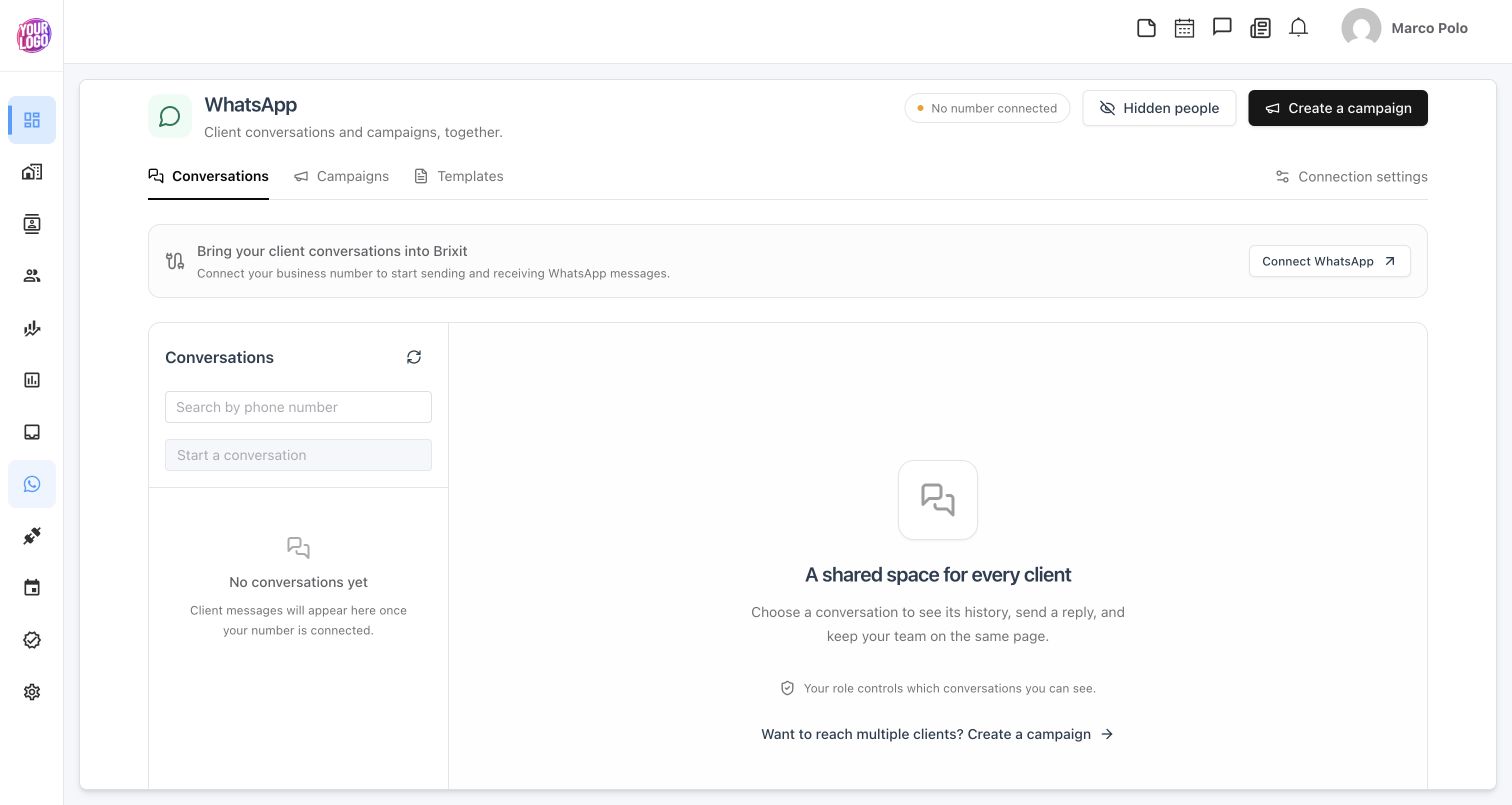
This workspace has no connected number. The screenshot shows navigation and the empty conversation layout; sending becomes available after connection and permission checks.
Find or start a conversation
- Open WhatsApp → Client conversations. The workspace tab is labelled Conversations.
- Search by the client’s phone number, including its country code, and open the matching thread.
- Use Load older messages when you need more history.
- To contact someone new, use Start a conversation and select the correct CRM contact.
- Read the history and check the phone number before composing a message.
Incoming numbers can match existing contacts. Where you have the appropriate access, use Match a CRM contact, Assign conversation and Assign to resolve an unassigned conversation. Check ambiguous matches before associating them with a person.
Reply or send a template
- Check the conversation indicator: Reply window open or Template required.
- When the reply window is open, enter your text in Message.
- Otherwise, choose Use an approved template and review its language and message preview.
- Select Send when the recipient and content are correct.
- Check the message’s status and any error code. Accepted or sent does not mean delivered or read.
Brixit’s current reply window is 24 hours from the latest incoming client message. Eligibility is checked again when sending. If the composer says you have view access, ask an administrator to review your sending permission and record access.
A WhatsApp follow-up records planned work; it does not send this message.
Create a reusable template
- Open Templates in the WhatsApp workspace.
- Enter Template name, select Language and choose Category.
- Write the plain-text Message. Use Marketing for offers and outreach; Meta determines the final category and approval status.
- Select Submit to Meta when the message is ready for review.
- Use Refresh status later and wait for APPROVED before sending.
The current composer accepts supported static text templates. Templates with variables, headers, buttons or media are not offered for sending in this interface. An approved template must still use a supported format to appear in the selector.
Record client consent
With permission to edit contacts, open the conversation’s Client consent section. Choose Marketing or Service messages, set Opted in or Opted out, and record the source, date and what the person agreed to. Select Record consent after checking that the entry accurately reflects their choice.
Selecting WhatsApp as a communication preference does not record campaign consent. Campaign delivery checks consent and other exclusions again before sending.
Manage Hidden people
Use Hide this person only when you intend to hide their conversation from the team’s WhatsApp workspace. Their history and future messages stay out of the shared inbox and WhatsApp contact searches, and campaigns skip the number. Messages remain stored; this does not hide or delete an existing CRM contact.
Open Hidden people to review people you have hidden. Only the person who hid them can restore them from that list. Read the confirmation before Restore: stored history and future messages become visible again to teammates with access.
Common questions
Why is the reply box unavailable?
Check the business-number connection, sending permission and the reply-window indicator. Outside the reply window, choose a supported approved template.
Where do campaign replies appear?
Replies arrive in Conversations, where your team can continue the client conversation.