
How to upload and manage documents in Brixit CRM
Keep supporting files with the record they belong to. The shared Documents area is used on contacts, inquiries, listings and transactions where your role has access. Employee records also expose document controls according to HR permissions.
1. Open the correct record
- Open the relevant module and find the contact, inquiry, listing, transaction or employee.
- Check the record’s identity before adding a file.
- Select Documents.
- Select Upload, or Upload first document when shown on an empty record.
2. Choose and upload a file
- Drop the file into the upload area or click the area to choose it.
- Check the selected filename. The shared upload form accepts one file at a time.
- Select Upload and wait for the successful response.
- Confirm the file appears in the Documents list with the expected name, size and date.
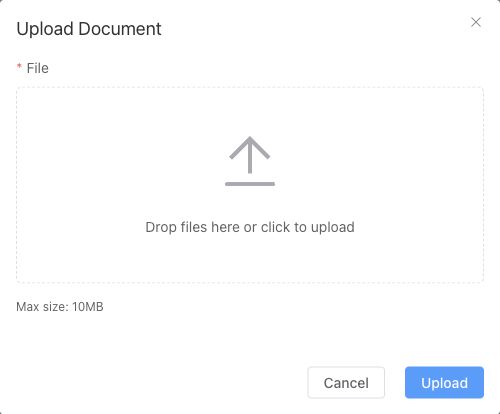
Selecting a file and submitting Upload are separate steps. This screenshot shows the empty form.
The standard form supports PDF, DOC, DOCX, XLS, XLSX, PPT, PPTX, JPG, JPEG and PNG. Keep the file under 10 MB; use the limit shown on your form if that module displays a different configuration. Repeat the process for additional files.
Choose descriptive filenames before upload, such as a document purpose and version. The standard upload form uses the file itself; it does not ask for a separate document category.
Preview or download
Use Search to locate a filename. Open the preview/eye action to inspect a supported file. If the preview is unavailable, use Download or Download to view and open the downloaded file with an appropriate application.
Review Uploaded By and Date when deciding which version to use. A document stored on a record is not automatically a listing photograph or portal publication attachment. Use the listing’s media controls for property images and review the portal workflow for published information.
Remove an incorrect file
If your role exposes Delete, open the document’s action menu, verify the filename and confirm only the file you intend to remove. Uploading a newer version does not mean an older attachment has been removed. Check the remaining list after deletion.
Troubleshooting
| Problem | What to do |
|---|---|
| File type is rejected | Use one of the permitted extensions; renaming an extension does not convert the file |
| File is too large | Reduce the file size or split it into meaningful parts below the displayed limit |
| Upload button is missing | Check document-create permission for this module and your access to the record |
| Preview is blank or unsupported | Download the file and open it locally |
| File appears on the wrong record | Verify the parent record before uploading; remove only the mistaken attachment if authorised |
Common questions
How do I upload a document in Brixit?
Open the correct record, select Documents → Upload, choose one file and select Upload again to submit it. Confirm the file appears in the list. The standard form accepts the file types listed above and files under 10 MB.
Does uploading a document publish it on a property portal?
No. A record attachment is separate from listing photographs and portal publication. Review the listing’s media controls and the destination’s publication settings for content you intend to publish.