
How to create and manage WhatsApp campaigns in Brixit CRM
Use WhatsApp → Campaigns to send an approved message to selected CRM contacts. Create a draft first, then review eligible recipients and approve delivery. Saving a draft does not send messages, even when it contains a scheduled time.
Check the prerequisites
Connect the business number using the WhatsApp setup guide. Your role needs campaign-management access, and the message must be a supported approved text template. Record the recipients’ marketing consent in Client consent before planning outreach.
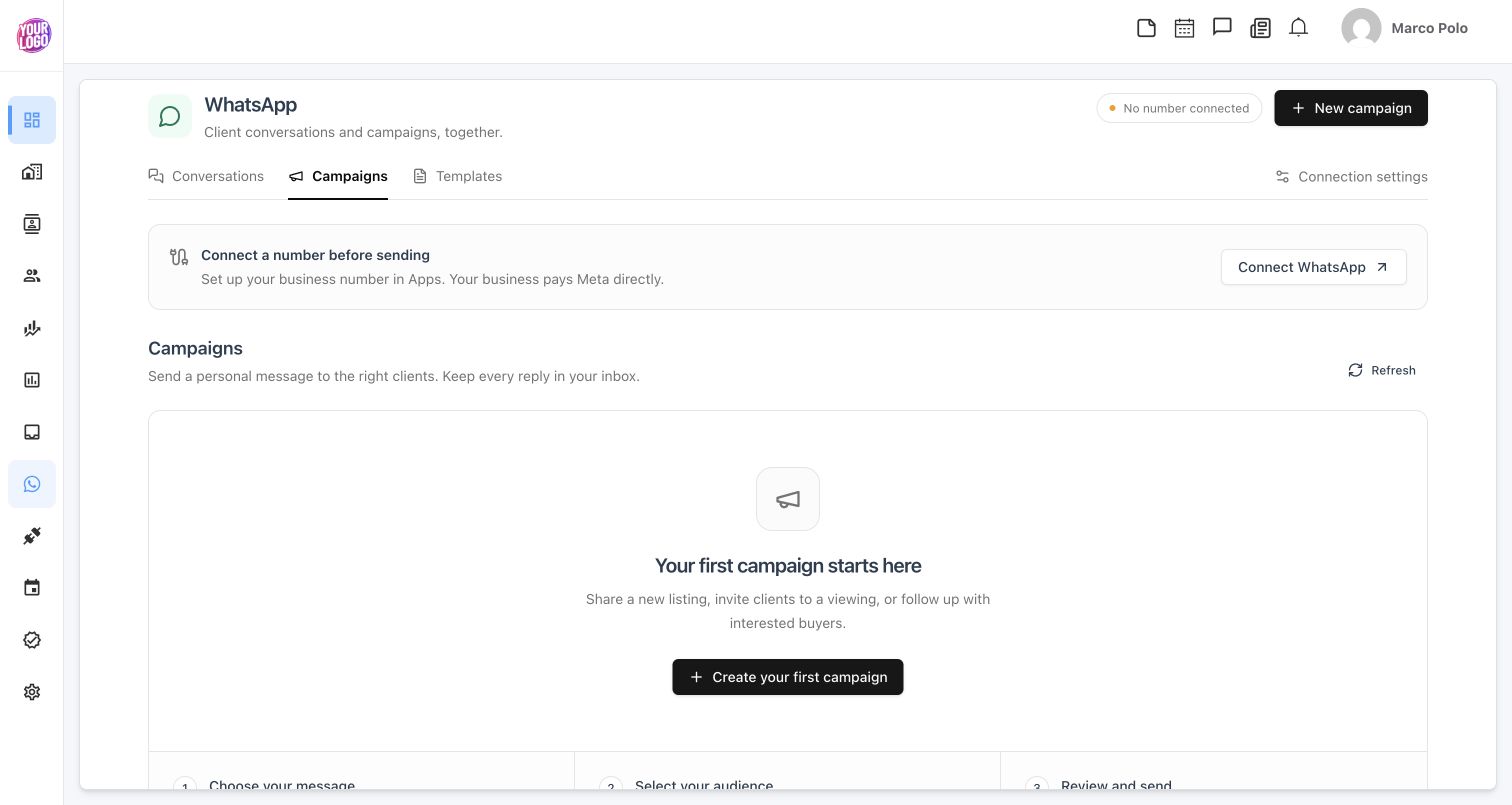
The example workspace is not connected. Its connection notice explains why approved templates cannot yet load; no campaign has been sent.
1. Choose the message
- Select New campaign or Create your first campaign.
- Enter a Campaign name that your team can recognise. Clients do not see this internal name.
- Choose the approved Message template, checking both its name and language.
- Read Message preview, then select Continue.
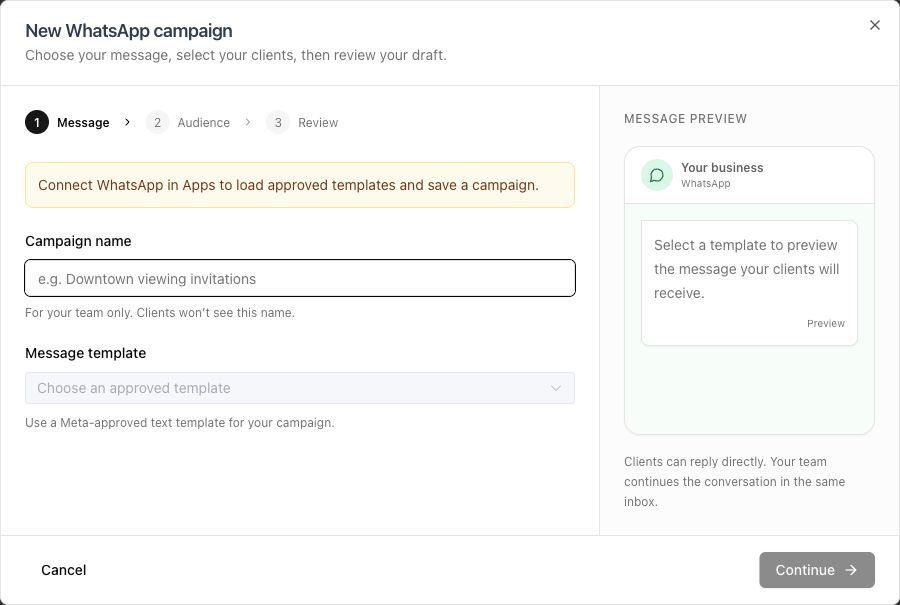
This unsaved form shows the Message step. The template selector is disabled because this workspace has no connected number.
2. Select the audience
Search Contacts by name or phone and select the intended people. A campaign supports up to 1,000 selected contacts. Check the selected count, then select Continue.
The audience is restricted by CRM access. Duplicate phone numbers receive one message, and the selected-contact count can be larger than the final eligible audience. Marketing consent, opt-outs and hidden people affect whether a recipient can receive the campaign.
3. Review and save the draft
Review the campaign name, selected audience and template. To send later, set the optional Schedule to a future date and time. The form uses your local timezone. Leave it empty to send after approval. Select Save draft.
The saved campaign appears in the list with its status and schedule. A scheduled draft still needs approval; the scheduled time alone does not authorise delivery.
4. Review and approve delivery
- Find the draft in the campaign list and select Review & approve.
- Review the actual message, eligible count and excluded count.
- Check the schedule and the Meta charging notice.
- Select Approve campaign only when the audience and message are ready.
- If company approval rules require further review, follow the resulting approval request and its execution result.
Consent, template approval and access are checked again before delivery. For an approved campaign, the scheduled time governs when sending can begin; delivery may continue after that time. Your business pays Meta directly.
Track, pause or cancel
| Control | What it does |
|---|---|
| Refresh | Reload campaign status and the list |
| Report | Show the recorded message counts by status |
| Pause | Pause pending delivery for an approved campaign |
| Resume | Continue a paused campaign |
| Cancel | Cancel messages that have not started sending, after confirmation |
Available controls depend on campaign status. Already submitted messages cannot be recalled. A completed campaign does not mean every recipient received or read its message; inspect Report. Client replies appear in Conversations.
Common questions
Why is my approved template missing?
Check its language, approval state and supported format. The current selector excludes authentication templates and templates with variables, media, headers or buttons.
Why are recipients excluded?
Check recorded marketing consent, opt-outs, duplicate phone numbers, hidden people and CRM access. Review the eligible count before approving rather than assuming everyone selected will receive a message.