
Set up company information and access in Brixit CRM
Update Company Settings
- Open Settings → Company Settings.
- Review Company Name, Contact Email, Company Phone and Address.
- Select the company Currency. Check its intended use before changing a shared default.
- Upload the Company Logo if needed, complete the crop and inspect the preview.
- Select Save and reopen the page to verify the saved details.
A disabled form or permission message means your role cannot change company settings. Ask the responsible administrator to make the change.
Create a role
- Open Settings → Roles & Permissions and select Create.
- Enter the role Name.
- Optionally use Import From to start with another role’s permissions.
- Save the role, then open its Edit action to review the permissions it should have.
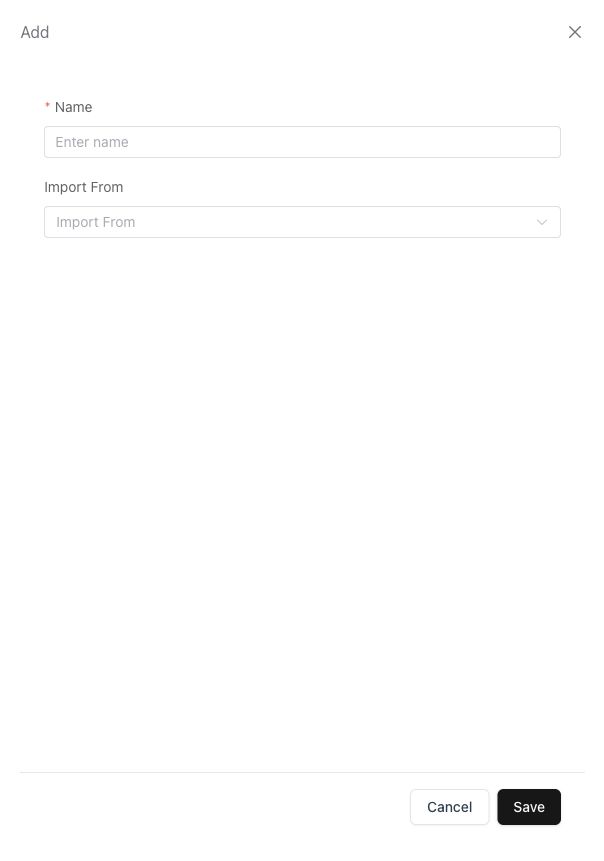
The new-role form starts with a name and an optional existing role to copy.
Copying a role is a starting point. Review the inherited access before assigning people to the new role.
Review permissions
Expand the relevant module in the permissions editor and review each action’s available access choices. Record-based permissions can expose different visibility scopes; configuration actions may use simpler access choices. Select only from the choices shown for that permission, then save the changes.
Menu access and action access are different. Being able to see Contacts does not imply permission to export contacts, delete them or change their owner. The same principle applies to documents, reports, transactions, integrations and settings.
The built-in administrator role is protected from the normal role-edit/delete actions. For an ordinary role, check the Users count before making changes that affect everyone using it.
Assign access to an employee
Open HR → Employees, create or edit the employee, and select the intended access level/role in their account details. Follow the employee guide for the remaining employment fields. Departments and designations organise the team; they are not a substitute for permission review.
After saving, verify access with the intended user: the expected menus should be visible, permitted actions should be available, and record visibility should match their job.
Resolve missing access
Check the module’s view permission, the specific action permission, record ownership or team scope, and any state/approval restriction. If an integration-dependent menu is missing, check the service connection too. An administrator seeing an action does not prove every role can use it.
For personal details and mailbox settings, use the avatar’s Profile Settings and the personal tools guide.