
How to share property listings with clients in Brixit CRM
A share groups listings behind a client-facing link. Use it to present a property or shortlist, control which information appears and manage the link afterwards.
Before you start: you need access to the listings and permission to share them. Review the property descriptions, photos and availability before making a share.
1. Start from a listing
- Open Property → Listings.
- Find the property you want to share.
- Open its row’s Actions menu and select Share Listing.
- Check the selected-listing count in the dialog.
2. Create a new share
- Leave Create a new share selected.
- Enter a useful Name, such as “Marina apartment shortlist”.
- Select Create to create the share and open its details.
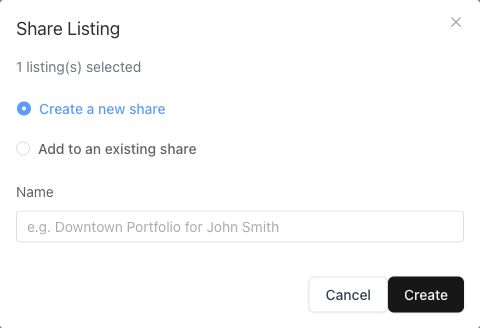
An unsaved share. Creating it is the step that creates the client-facing collection.
3. Review settings before sending the link
On the share’s detail page, review these settings:
| Setting | What to decide |
|---|---|
| Price and company information | Whether these should appear to the recipient. |
| Lead capture | Whether to enable the share’s lead-capture option. |
| Expiry | How long the share should remain available. |
| Agent | Which agent should represent the collection. |
| Theme, language and currency | The default presentation and the language/currency choices offered to visitors. |
Save your settings, then use Preview to inspect the result. Check the included listings and visible information before selecting Copy Link and sending it through your chosen communication channel. Treat the link as something its recipient can forward.
4. Add another property to the same share
- Return to Property → Listings and find the next property.
- Open Actions → Share Listing.
- Select Add to an existing share.
- Choose the collection in Existing share and select Add.
- Open Property → Shares, select the collection and check its listing list and preview.
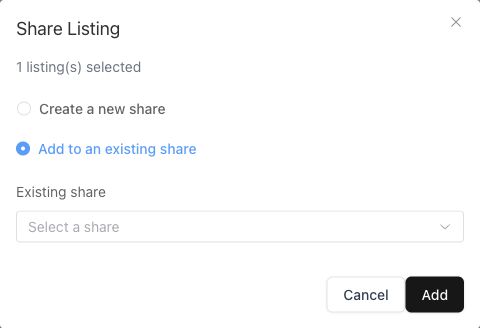
Use the existing-share option to extend a shortlist instead of creating a separate link.
Manage a share after sending it
Open Property → Shares, or use the Shares button on the Listings page. The list shows each share’s status, listing count and views. Open a share to review its settings, copy its link or remove a property from the collection.
Use the row’s Pause action when you need to stop access, and Resume when it should be available again. Check its expiry as well: resuming a share does not remove an expired date. Removing a listing from a share changes the collection; it does not delete the underlying listing record.
If something does not work
| What you see | What to check |
|---|---|
| Share Listing is unavailable | Ask an administrator to check your sharing permission and access to that listing. |
| Existing collection is not selected | Choose the correct share before pressing Add. |
| A link is unavailable | Check whether the share is paused or expired. |
| The preview shows unexpected information | Review visibility, agent, language and currency settings, save them and preview again. |
Related: Create a listing · Inquiries · All CRM guides.