
How to build and share a lead capture form in Brixit CRM
Sales → Brixit Forms lets you create a hosted form for prospects. Each form uses a reusable Assignment Strategy so the CRM can route incoming work consistently.
Before you start: configure an assignment strategy and confirm who should receive submissions. You also need permission to create forms.
1. Name the form and choose assignment
- Open Sales → Brixit Forms and select Add.
- Enter a clear Name for the campaign or purpose.
- Select Assignment Strategy. Review its team, source, pipeline/stage and repeat-inquiry behavior before using it.
2. Choose the fields
Use the field checklist and review the live preview alongside it. First name, last name, email and primary phone are required fields. Add only the optional information your team needs, such as budget, property types, preferred locations, bedrooms, developers or notes.
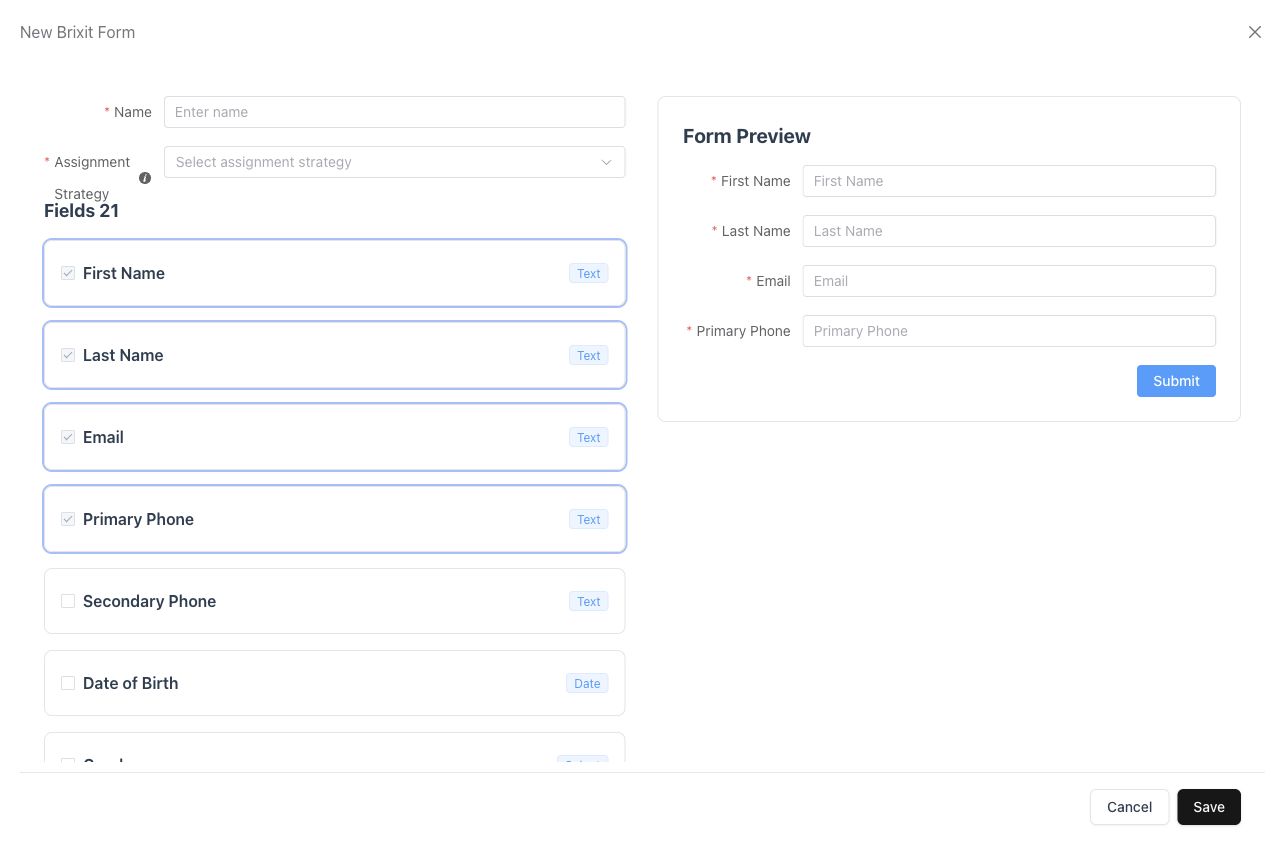
The builder preview lets you check the questions before saving the form.
The preview’s Submit button belongs to the form preview. Use the builder’s Save button to save the form configuration.
3. Save and share
- Select Save and resolve any validation errors.
- Find the new form in the table and check its name, assignment strategy and status.
- Open its action menu and choose Copy Form URL or Share.
- Open the copied public URL to check the customer-facing layout before distributing it.
- Share that URL through the intended campaign or channel.
The public form URL is different from the CRM editor address. The table masks the public slug until you reveal it; copying the form URL provides the complete customer-facing link.
4. Check incoming work
Review the form’s lead count and the resulting records in Sales → Contacts and Sales → Inquiries as applicable to the submission. Check source, ownership and any pipeline defaults against the selected strategy, then schedule a follow-up.
A repeat submission may match an existing contact. The strategy’s Repeat inquiries setting determines whether the new inquiry uses the assignment pool or stays with the active contact owner. See assignment behavior.
Update or retire a form
Use Edit from the row menu to change the name, strategy or selected fields, then save and recheck the public view. Review status before sharing a link. If you delete a form, remove its links from campaigns and websites as part of retiring it.
| Problem | Check |
|---|---|
| Strategy selector has no suitable option | Ask an administrator to create the intended assignment strategy |
| Required questions cannot be removed | First name, last name, email and primary phone are mandatory |
| The wrong agent receives an inquiry | Review strategy members and repeat-inquiry behavior |
| Public form is unavailable | Check the copied URL and whether the form is still present and active |
Common questions
How do I share a Brixit Form?
Save the form configuration and use Copy Form URL to obtain its public link. The preview’s Submit control tests the form experience; it is separate from saving the configuration.