
Review CRM reports in Brixit CRM
Open Reporting to choose a report. Your role controls which reports and underlying records you can inspect.
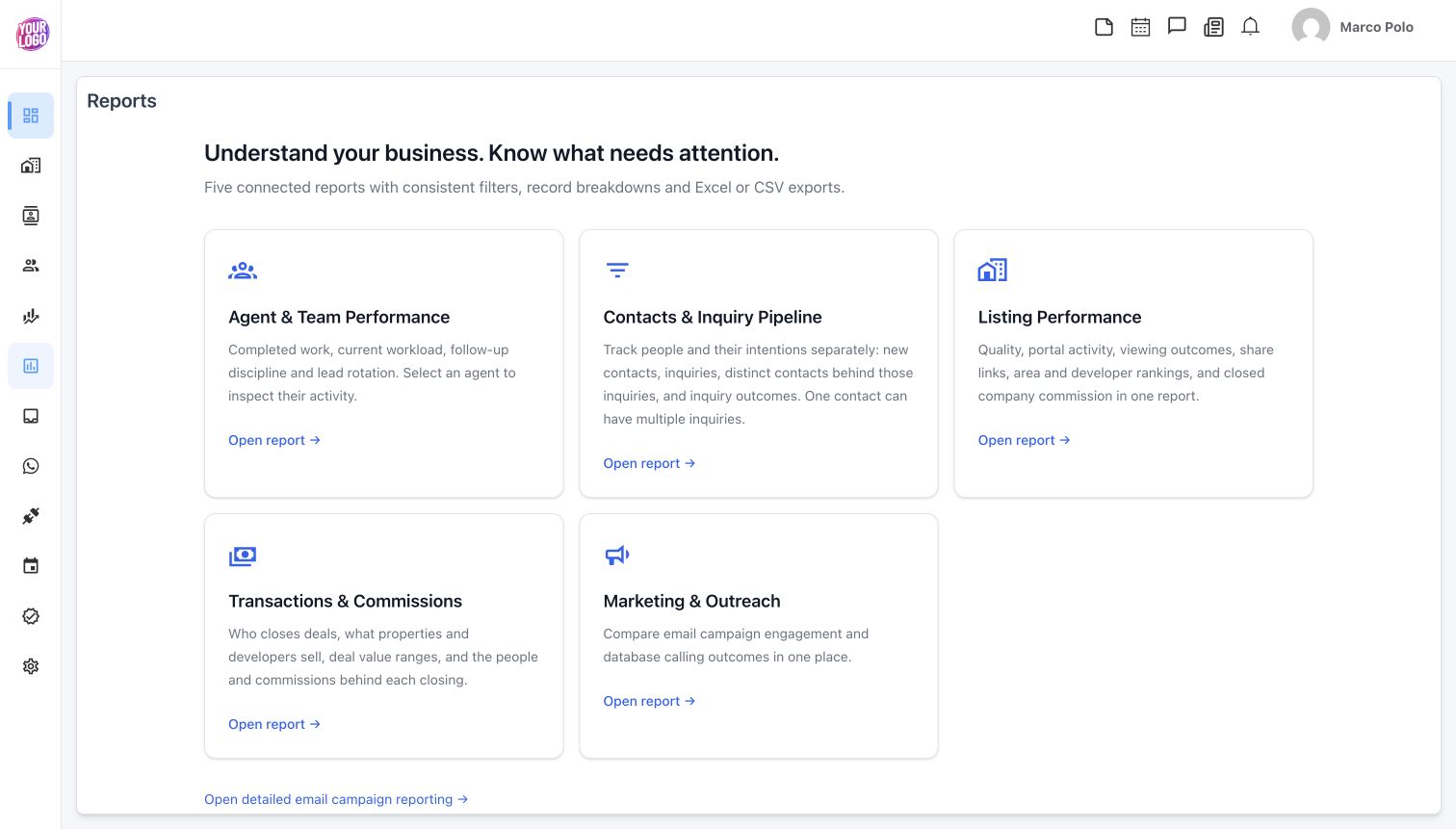
Choose a report by the business question, then inspect its filters and record breakdown.
Choose the report
| Report | Questions it helps answer |
|---|---|
| Agent & Team Performance | What work was completed, what is pending or overdue, and how has lead rotation moved work? |
| Contacts & Inquiry Pipeline | How many people and requirements entered the CRM, and what happened to the inquiries? |
| Listing Performance | How are quality, portal activity, viewings, shares, areas, developers and closed company commission performing? |
| Transactions & Commissions | Who closed deals, which properties sold, and what are the transaction and commission records behind the totals? |
| Marketing & Outreach | How do email campaign engagement and database calling outcomes compare? |
Apply filters and investigate
- Open the relevant report and review its description.
- Choose a period or date range. The report uses its displayed date context; check the timezone when comparing results from different users.
- Select an agent, team or other available filter. Transactions distinguish the record’s creator from the closing agent, so choose the filter that matches your question.
- Review summary metrics and trends, then select a metric or report section to inspect its underlying table where supported.
- Search the breakdown table and open the underlying record when a record link is offered.
- Clear the metric/table filter before moving to a different question.
Inspect listing performance in detail
Use the listing report’s sections for performance, quality, portals, viewings, sharing, rankings and revenue. Compare missing-quality information with the listing quality checklist, portal issues with the publication guide, and viewing outcomes with follow-up history.
Inspect transactions and commissions
The transaction report separates closings, people, properties, value ranges, the transaction-date register and records needing attention. Check missing closing dates or closing agents before interpreting a person’s closing performance.
A record creator and a closing agent can be different people. Deal value, generated commission, paid commission and outstanding amounts measure different things. Open the transaction and its commission splits/payment history to understand a discrepancy.
Inspect marketing and calling
Use Marketing & Outreach for email engagement and database call outcomes. Use Open detailed email campaign reporting on the reporting home when you need individual campaign detail. Check audience and delivery status before treating engagement counts as successful conversations.
See Email campaigns for recipient details, exclusions, cancellation and retry controls.
Export a report
- Set the intended report, dates and filters first.
- Select Export and choose Excel or CSV.
- Open the downloaded file and check its date/filter context against the screen.
- Include that context when sharing the result so another person can reproduce it.
When totals differ, compare periods, filters, record visibility and the metric definition before assuming data is missing. One contact can have several inquiries, so those counts should not be expected to match.