
Record and track expenses in Brixit CRM
Use Finance → Expenses for costs such as property photography, advertising or agency overhead. Link an expense to a property or contact when you need that context.
Before you start: you need permission to create expenses, the amount and currency, and a receipt if available. Check whether your company uses an expense approval workflow.
1. Enter the expense
- Open Finance → Expenses and select New expense.
- Enter a clear Expense title, such as “Photography for Marina apartment”.
- Add the Vendor / payee and check the expense Date.
- Choose Category and Currency.
- Enter Net amount and Tax amount, then check Total including tax.
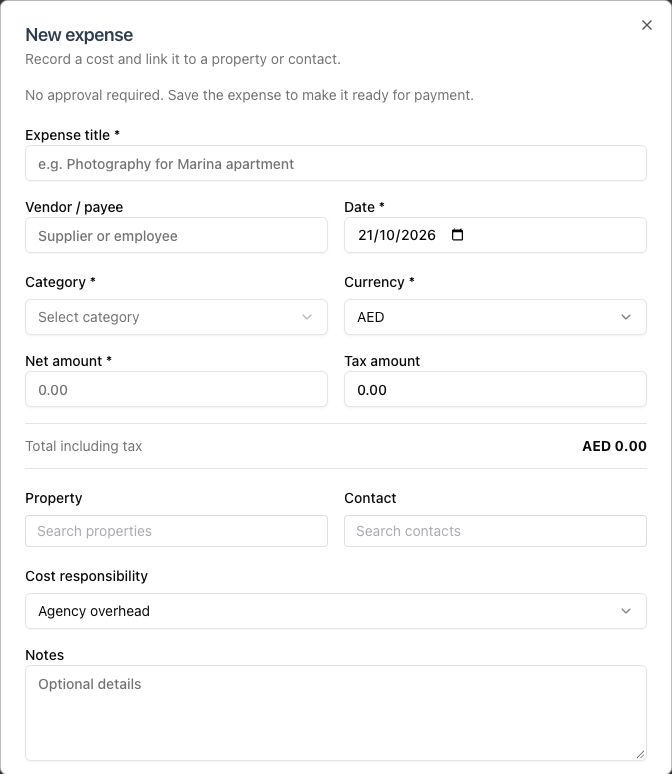
This workspace has no expense approval workflow. Your form will name the workflow when one is configured.
2. Link the cost and attach evidence
- Select Property or Contact if the cost relates to a CRM record.
- Choose Cost responsibility. If you choose a recoverable cost, complete the Recover from field that appears.
- Add Notes explaining the cost when needed.
- Scroll to Receipt and attach a PDF, JPG or PNG, up to 10 MB.
- Review the expense and any approval information shown above the form.
3. Save a draft or submit the expense
The buttons have different purposes:
| Button | When to use it |
|---|---|
| Save draft | Keep the entry for review before submitting or recording it. |
| Save & submit | Submit it to the configured approval workflow. |
| Save expense | Record it when no approval workflow is required. Payment is recorded separately. |
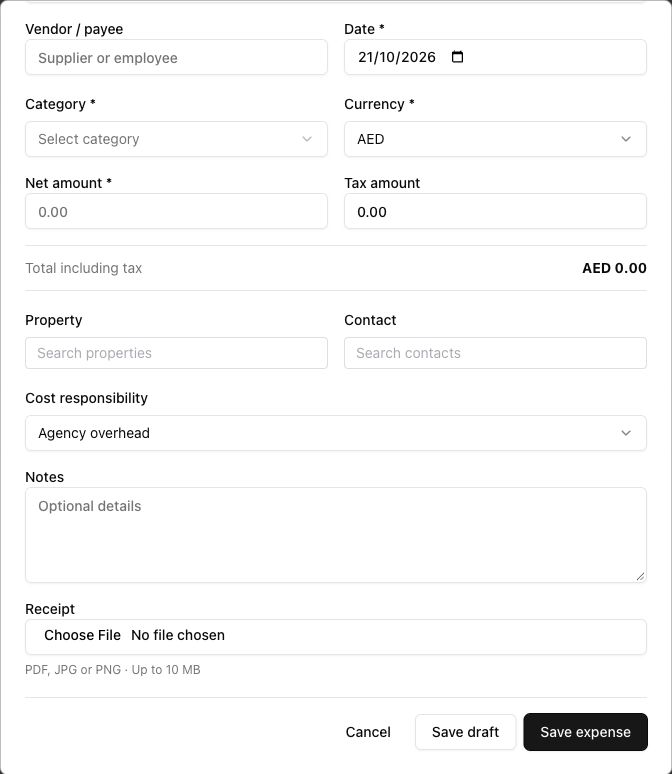
The save controls in a workspace without an approval workflow. Save & submit appears when approval is configured.
After saving, open the expense from the table and review its Status and Payment. For an approval workflow, review its timeline or open Approvals. A submitted expense waits for the person assigned to the current approval step.
If an expense is rejected, read the reason, make the permitted corrections and use Resubmit for approval when available. If no approval is required, a saved draft can be moved forward using Record expense.
4. Record payment after it happens
- Open the expense and confirm it is ready for payment.
- Select Record payment when that action is available to your role.
- Enter the payment date, method and reference, then confirm the record.
- Check the Payment column and activity history.
This records a payment in Brixit; it does not move money. For a recoverable cost, record recovery separately when it has actually been received, using the available action on the expense.
Review costs
Use Filters to narrow the list by the available criteria, including linked records. Select Overview to see totals for the current filters. Totals are separated by currency. Use Export when you need a file for further review.
If something does not work
| What you see | What to check |
|---|---|
| Form cannot save | Complete required fields, check amounts and use an expense date that is not in the future. |
| Receipt is rejected | Use PDF, JPG or PNG and keep the file at or below 10 MB. |
| Expense is waiting | Review the approval timeline and the current step’s assigned approver. |
| Record payment is missing | Check status, approval completion and your permissions. |
| Totals look different | Check filters and currency; the overview does not combine different currencies into one total. |
Related: Review approval requests · Transactions and commissions · All CRM guides.