
Configure Contacts & Inquiries in Brixit CRM
Open Settings → Contacts & Inquiries. The six tabs cover different parts of Sales.
| Tab | Purpose |
|---|---|
| Pipelines | Inquiry pipelines and ordered pipeline stages |
| Sources | Where contacts and inquiries originate |
| Assignment Strategies | Reusable routing rules for incoming work |
| Contact Stages | Relationship stages on the person |
| Lead Rotation | Rules and reporting for reclaiming idle assigned contacts |
| Email Templates | Reusable message names, subjects and bodies |
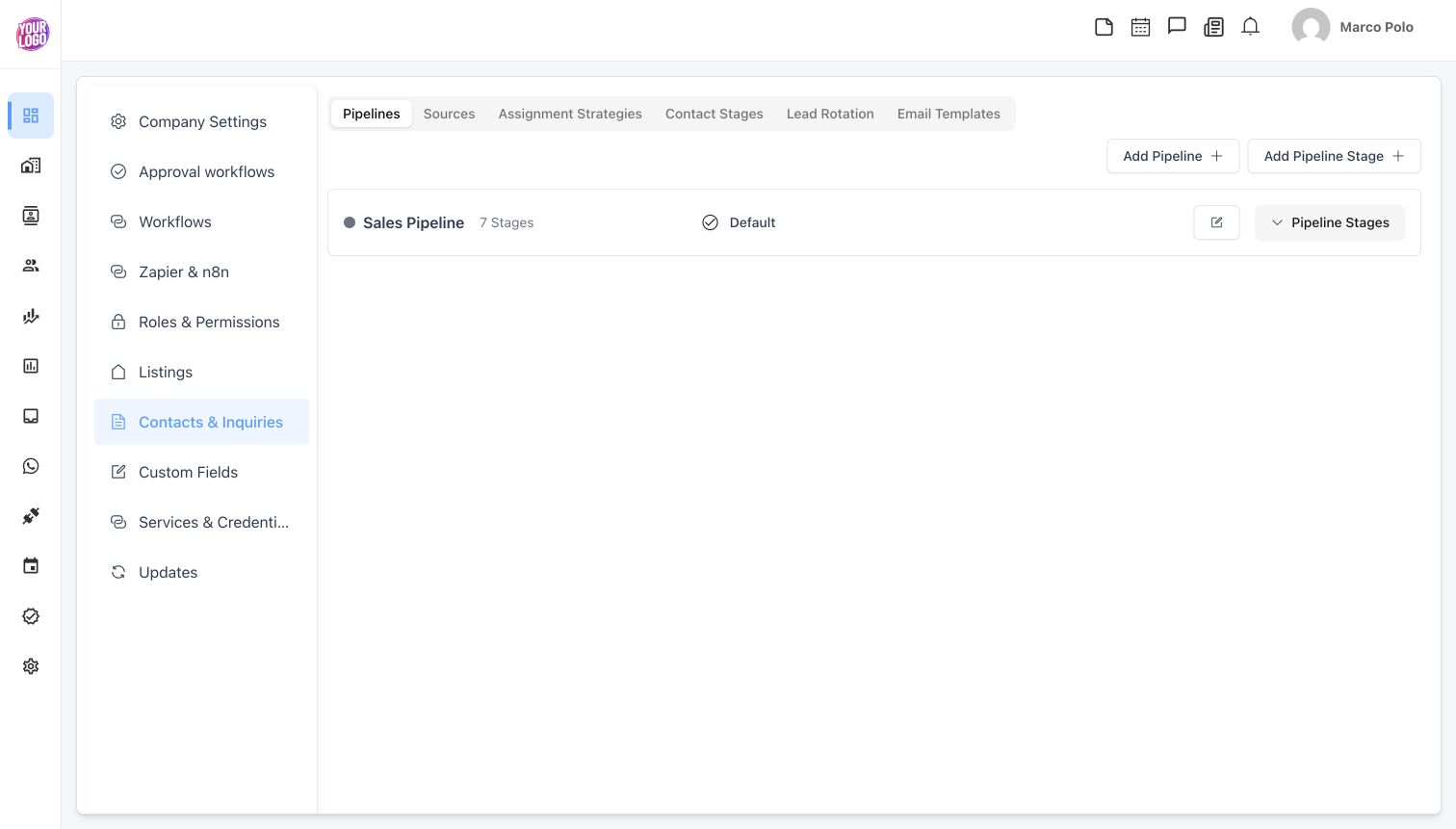
Contact stages describe people; pipeline stages describe progress on an inquiry.
Create a pipeline and its stages
- Open Pipelines and select Add Pipeline.
- Enter the pipeline details and save.
- Select Add Pipeline Stage, choose the pipeline, then enter the stage Name, Color and Priority (position) where offered.
- Save and expand Pipeline Stages on the pipeline to review the order.
- Repeat for each meaningful stage in your process. Use the edit controls to correct a name, colour or position.
- Set the intended Default pipeline if appropriate for your team.
- Open a new inquiry and check that the expected pipeline is available.
Use stages that represent clear changes in the opportunity. Avoid creating a stage for every small task; use follow-ups for calls, meetings and reminders.
Maintain Sources
Open Sources, search for the existing value before adding a new one, and use Add to create a source. Save, then check it in the relevant contact or inquiry form. Use the row’s edit action to correct an existing label. Keep equivalent channels under consistent names so reports are meaningful.
Maintain Contact Stages
- Open Contact Stages and add the stage name.
- Save, then review the list and default marker.
- Use Set Default where appropriate for newly created contacts.
- Use Edit to rename a stage. When deleting a stage, choose the required replacement so affected contacts have a valid destination.
Contact stages and inquiry stages are separate. A person can have one relationship stage while several inquiries are at different points in their pipelines. Some system stages have restricted actions; use the controls the CRM exposes.
Set up assignment and rotation
Follow Assignment strategies and lead rotation for both tabs. Assignment routes incoming work; rotation reclaims idle contacts already owned by an agent. Review these rules before using them in Brixit Forms.
Create an email template
- Open Email Templates and select Add.
- Enter the template Name, Subject and Email Body.
- Insert personalization using the available Merge Fields selector in the subject or body. Use the provided field tokens instead of inventing placeholders.
- Select Add to save a new template, or Update when editing.
- Select the template in the intended email workflow and review the resolved message and recipients before sending.
Template editing depends on permission and ownership. Saving a template stores reusable content; it does not send an email. For delivery configuration, see Email.