
Plan your day in Calendar in Brixit CRM
Open Calendar from the left navigation. Use the date controls and Today to move between periods, and switch between Month, Week, Day and Agenda to choose the level of detail you need.
Review scheduled work
Select an item to review its time, status and details. Where a CRM target is linked, open that record to see its full activity history. An overdue follow-up still needs an outcome or a revised plan; opening it in Calendar does not complete it.
Items from a connected Google Calendar are identified separately. Use the controls available for that item; an external calendar event and a CRM follow-up can have different editing rules.
Create an event or task
- Select Create in Calendar.
- Enter a clear Title and choose Category: Event or Task.
- Set Start Date & Time and End Date & Time. For an all-day item, select All Day and complete its Date Range instead.
- Add a Description with the context you need.
- Enable Send Reminder if required, and enter the amount and unit.
- Select Save and verify the item appears on the intended date.
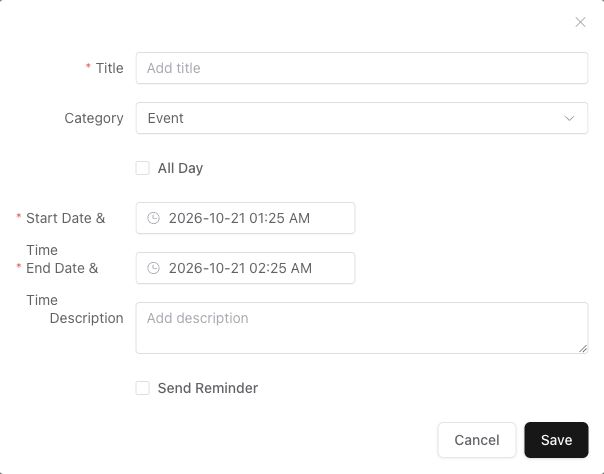
An unsaved Calendar event. For work linked to a specific CRM record, start from that record’s Followup area.
Open an existing editable event to make changes and select Update. Check the updated start and end time in the calendar. For record-linked tasks, follow the follow-up guide to complete, cancel or reschedule the activity.
Connect a calendar
Follow Google Calendar setup for connection and synchronization. Check the account and calendar selected in the integration before relying on external items. Review the displayed dates and times whenever users work across time zones.
If an item is missing, check the visible period, selected view, record access and connection status. Calendar access does not grant access to every linked CRM record.