
Create and manage inquiries in Brixit CRM
An inquiry records what a contact wants: their intent, budget, property preferences and progress through a pipeline. Use Sales → Inquiries to keep those requirements and follow-up work together.
Before you start: create the contact, and make sure you have permission to add inquiries. Your company must have a suitable pipeline available.
1. Link the inquiry to a contact
- Open Sales → Inquiries and select Add.
- In Lead Contact, search for and select the person.
- Choose Inquiry Intent to describe their requirement.
- Enter an Inquiry Title that your team will recognise, such as “Two-bedroom apartment near the marina”.
- If the inquiry concerns a particular property, select it in Listing.
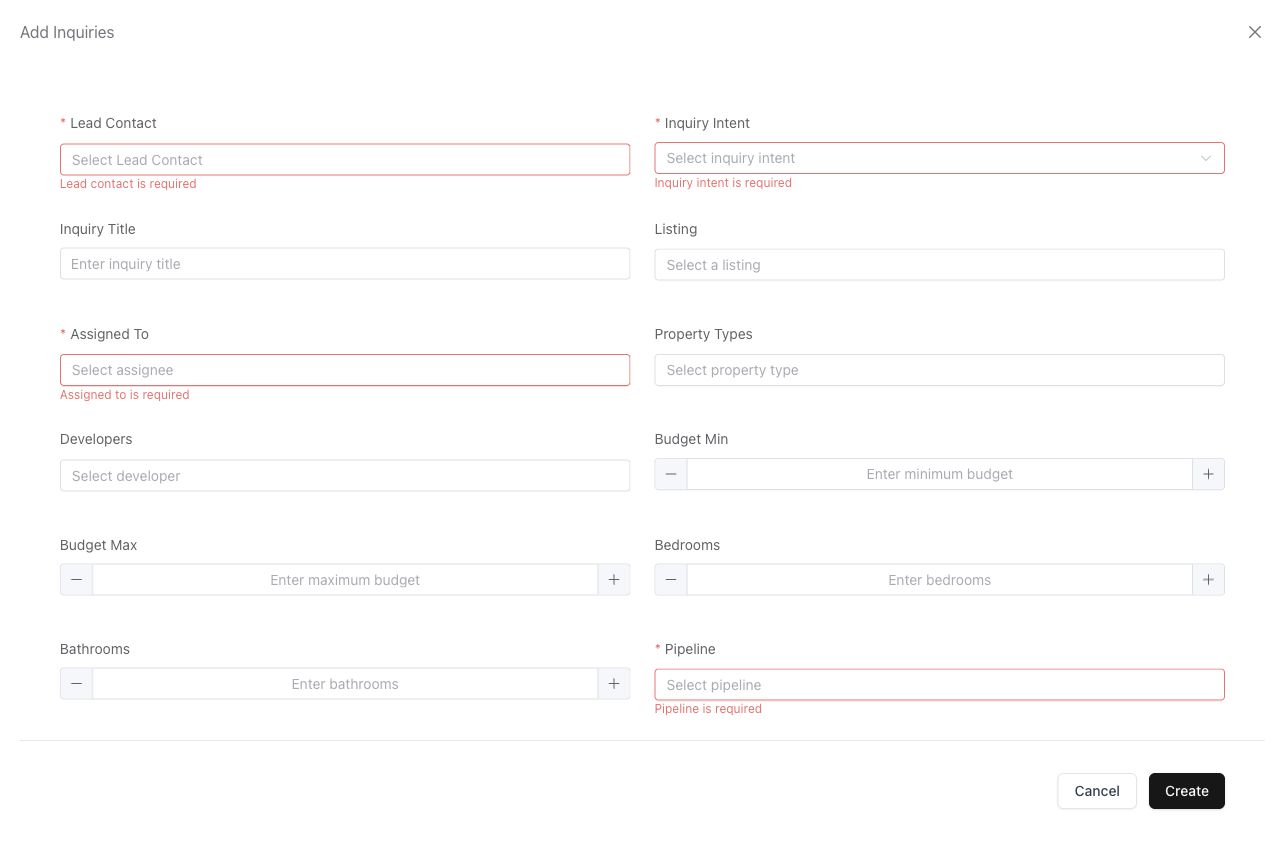
Contact, intent, assignee and pipeline are required. A listing can be selected when one is already known.
2. Capture the requirements
- Select Assigned To so a colleague owns the follow-up.
- Add relevant Property Types and Developers.
- Enter Budget Min and Budget Max, plus bedrooms and bathrooms where known.
- Choose the Pipeline for this inquiry. Complete any dependent fields that appear.
- Scroll down to choose Source, add Preferred Locations and write useful Notes.
Record the customer’s actual requirements. A broad or missing budget and location gives your team less information when evaluating suitable listings.
3. Create and verify the inquiry
Select Create. Resolve any validation messages, then find the saved inquiry in the list. Open it and check the linked contact, assigned colleague, pipeline and requirements. If the list is filtered, return to All or clear the filters before searching again.
4. Follow progress and matching properties
Use List View to compare budgets, pipeline, stage and assignee. Choose Kanban View to review the inquiry pipeline visually. Update the stage to reflect actual progress and check that the change saves.
Open an inquiry to review its overview, Documents, Recommended Listings and History. Open the linked contact for its notes and follow-up timeline. Review recommended listings against the client’s requirements before offering them. A match is a starting point for review; confirm availability and current details with the listing agent.
Use listing shares to prepare a client shortlist. Record the resulting sale or rental in Transactions when appropriate.
If something does not work
| What you see | What to check |
|---|---|
| Contact is not in the selector | Confirm the person exists and is visible to your role. Add them in Contacts first if needed. |
| Pipeline is missing | Ask an administrator to check pipeline setup and your permissions. |
| No suitable matches | Review intent, property types, budget and preferred locations; confirm matching listings are available. |
| Inquiry disappears from the current view | Check filters, selected pipeline and stage, and whether assignment changed. |
Related: Contacts · Listings · All CRM guides.