
How to schedule follow-ups and record outcomes in Brixit CRM
For a contact, open its Overview and use the activity composer. For a listing, open the Followup tab. From an inquiry, open its linked contact to work in the person’s timeline; inquiry details do not have a separate Followup tab in this interface. The activity types and actions offered depend on the record and your permissions.
1. Schedule the next action
- Select Add Followup in the activity composer.
- Choose Type from the available options, such as a call, email, WhatsApp, meeting, viewing or task. Listing follow-ups may offer a narrower set.
- Set Follow-up Date and Follow-up End Date to the intended start and end.
- Leave Status as Pending for planned work.
- Enter a useful Remark, such as the purpose, agreed next step or meeting location.
- For a viewing, select the required listing(s) when the form asks for them.
- Select Add Followup in the inline form, or Save in the dialog version.
- Check that the activity appears in the record’s history with the correct dates and status.
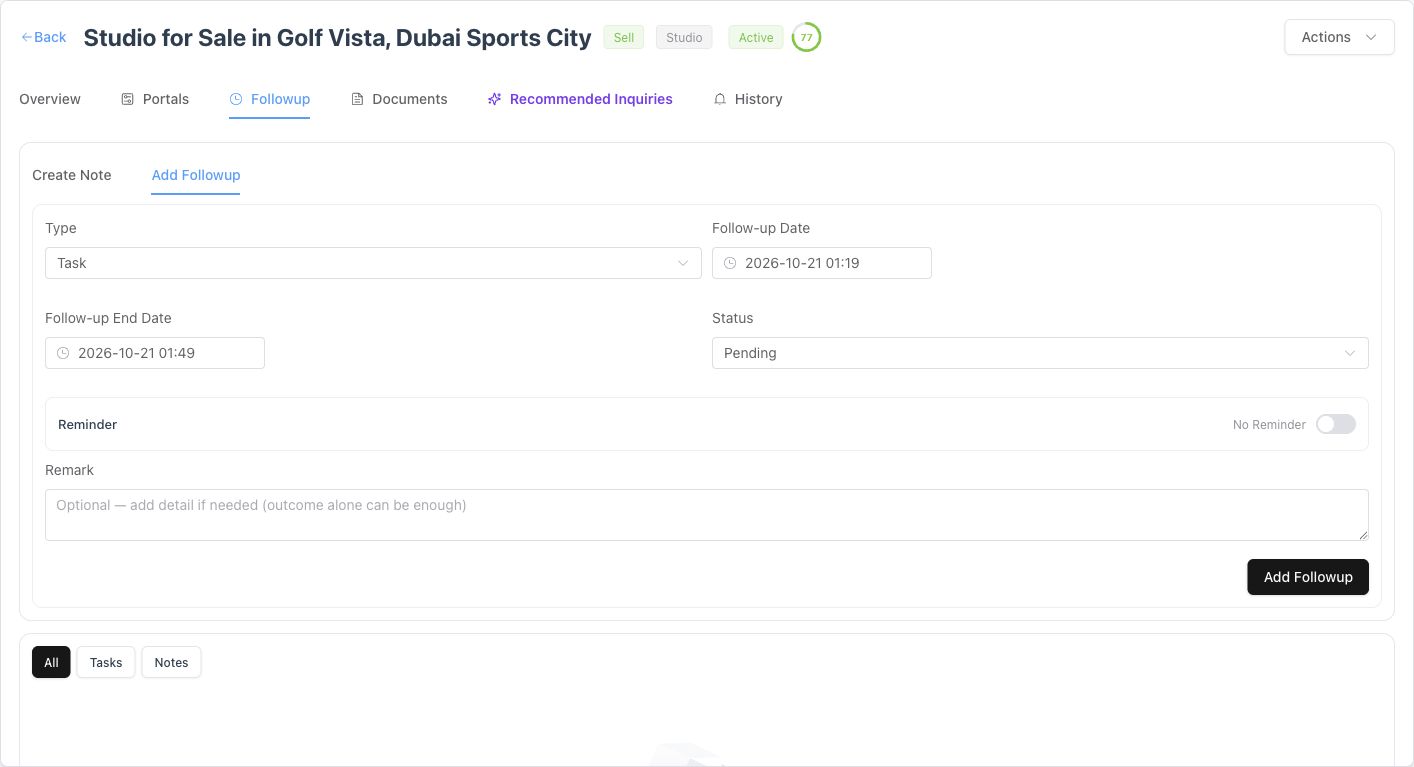
The listing example shows a pending Task. Other records can offer additional activity types.
Scheduling a call or email follow-up creates a CRM activity. Use your actual calling, email or WhatsApp tool to carry out the conversation; choosing an activity type alone does not place a call or send a message.
2. Add a reminder
For a pending activity with a future start time, turn on Reminder or Send Reminder. Choose the amount and unit (minutes, hours or days) before the activity. Check that the reminder time is still in the future and save the activity.
Reminder controls depend on the status and date. If they are unavailable, check that the activity is Pending and scheduled ahead of the current time. Review the dates again when rescheduling rather than assuming the old reminder is still suitable.
3. Record completed work
Open the activity’s edit or completion action after the work has happened. Set Status to Completed and choose Result when the selected type requires an outcome. Record the actual result and add context in Remark, then save and check the history.
| Status | Use it when |
|---|---|
| Pending | The activity still needs to happen |
| Completed | The work occurred; complete the required result |
| Cancelled | The activity will not take place |
| Rescheduled | The original activity has been moved; check the replacement date/activity |
A Pending activity whose due date has passed is shown as overdue. Merely passing its due time does not complete it. On a contact, Rescheduled marks the old activity’s status; it does not automatically create a replacement appointment. Add a new Pending follow-up with the revised start, end and reminder, then check that it appears in the timeline. Alternatively, edit a pending activity’s dates if your team keeps one activity record for the change.
4. Add a note
Select Create Note, type the context and select Create Note to save it. Use a note for information that does not need a due time. Use a follow-up for work that should be scheduled and completed.
Switch All, Tasks and Notes to review the right history. Read earlier notes before contacting a reassigned or newly claimed prospect.
Review the day
Use Calendar to inspect scheduled work and open linked records. Database calling has its own outcome and callback workflow. For repeated sequences, administrators can configure Workflows.
If an activity does not save, check the dates, any required viewing listings and the result required for Completed status. If it seems missing, check the history filter, parent record and your access.
Common questions
Where do I add a follow-up in Brixit?
For a contact, open Overview and select Add Followup. For a listing, open Followup. From an inquiry, open the linked contact to use its timeline.
Does an email or WhatsApp follow-up send a message?
No. Choosing the activity type records planned work. Send the actual message through your connected email or WhatsApp tool.
Does Rescheduled create a new appointment?
On a contact, Rescheduled changes the old activity’s status. Add a new Pending follow-up with the revised dates, or edit the existing pending activity’s dates and reminder.