
Record transactions and commissions in Brixit CRM
Use Sales → Contacts and Sales → Inquiries while working an opportunity. When you need to record the sale or rental, open Finance → Transactions. Transactions bring together the property, client, transaction amount and commission allocation.
Before you start: you need transaction access, the agreed property and client details, and the correct amounts and commission allocation. Add the listing and contact first when using internal CRM records.
1. Choose the transaction and parties
- Open Finance → Transactions and select Create.
- Choose Transaction Type. For a sale, select Sale; use the rental option for a tenancy.
- Select the linked Inquiry if this transaction came from one.
- Choose Transaction Source and Company Role to reflect how your brokerage participates in the deal.
- For Internal Transaction, select the property in Select Internal Listing and the contact in Select Client. Other source choices show the corresponding external-party or property fields; complete the fields for the chosen source.
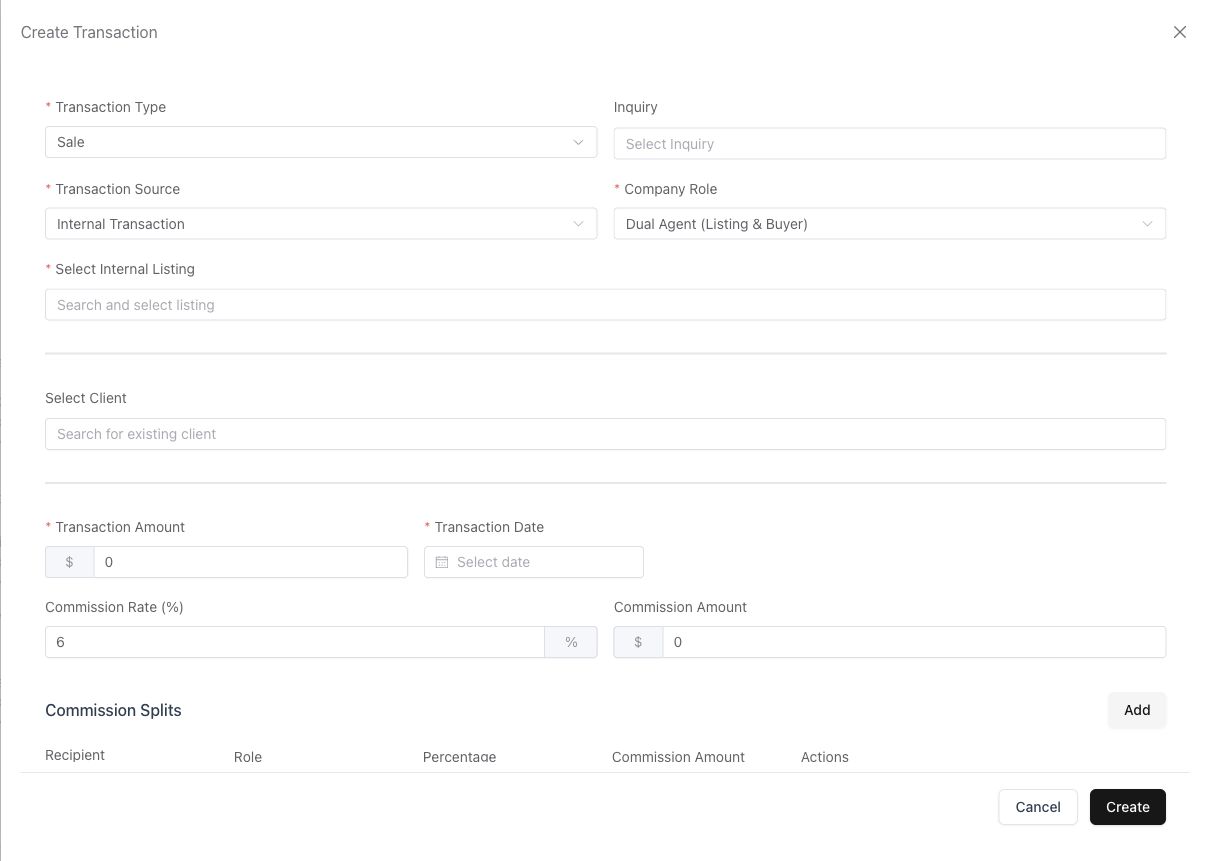
The internal sale workflow. The default rate shown in the form is an example, not a recommended commission.
2. Enter the amounts and date
Enter Transaction Amount and Transaction Date. Review Commission Rate (%) and Commission Amount, and replace defaults with the agreed figures. Check the currency used by your workspace before saving.
If you choose a rental transaction, complete the additional rental and payment-plan fields that appear. Review dates and amounts before continuing.
3. Allocate commission
Scroll down to Commission Splits:
- Review the rows generated for the selected company role.
- For each internal recipient, select the employee and their Role.
- For an external recipient, switch that row to External and complete its details.
- Enter the Percentage and review the calculated Commission Amount.
- Use Add for another recipient or the row’s remove button for an unnecessary row.
- Resolve the allocation messages. The split amounts must match the commission total, and the combined percentage cannot exceed 100%.
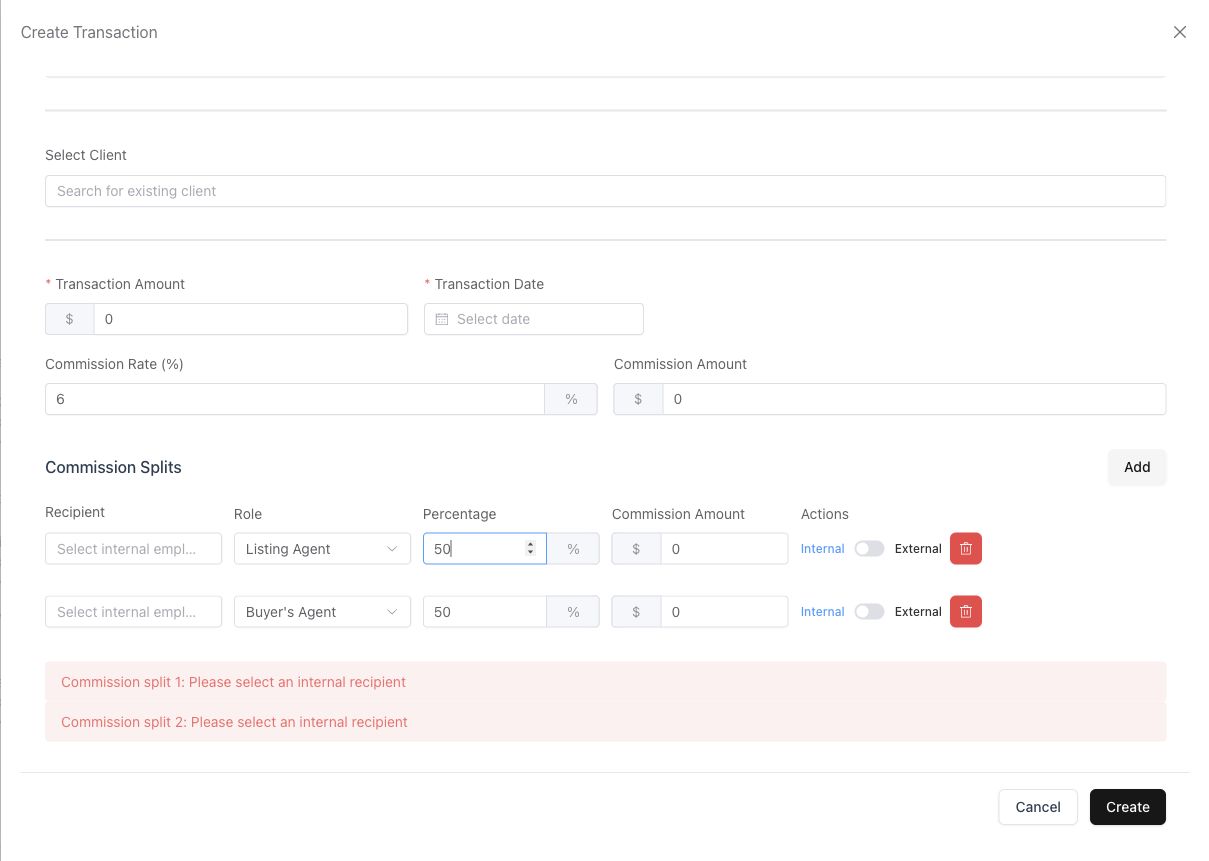
This unsaved example still needs recipients. The messages explain which rows to complete.
4. Create and check the transaction
Select Create, resolve any validation messages and wait for the save to succeed. Open the transaction from the table and review its reference, status, property, client and commission breakdown. Check any approval status your company requires before treating the workflow as complete.
Use the transaction’s notes and Documents areas, where available to your role, to keep supporting information with the record. Update the transaction through its available actions as the deal progresses; creating a record does not mean a deal is closed or paid.
Review and record commission payments
- Open the transaction and its Commission tab.
- Check the recipient, allocated amount, paid amount and remaining balance.
- When a payment has actually occurred and Record Payment is available, open it.
- Enter the payment amount, date, method and relevant reference or notes, then save.
- Review the updated balance and payment history.
Recording a payment updates the CRM record; it does not transfer money. Some transaction states lock payment actions. Follow the status or approval message before continuing.
Understand the overview
The Transactions page shows Closed transactions, Total transaction value, Commission generated and Commission paid. Generated commission and paid commission represent different stages. Review the underlying transactions when comparing them.
If something does not work
| What you see | What to check |
|---|---|
| Listing or client is missing | Check source selection, record visibility and whether the record exists. |
| A split requires a recipient | Select an internal employee or complete the external recipient fields. |
| Allocation does not balance | Review all split percentages and amounts against the commission total. |
| Payment or editing action is unavailable | Check transaction state, approval requirements and your permission. |
Related: Inquiries · Expenses · All CRM guides.